





































While QuickBooks, one of the most popular small business accounting software in the US, isn’t built specifically for property managers, it offers small and midsize firms a flexible, cost-effective alternative to industry-specific options that have built-in tenant and property modules. And although it may not have specific property management modules, there are workarounds that can be used to achieve the same goals as much more expensive software.
- Pros & cons of using QuickBooks for property management
- Who should use QuickBooks as property management software
- How to set up QuickBooks for property management
- How to pay owners and collect management fees
- Expert tips for using QuickBooks effectively in property management
- Alternatives to QuickBooks for property management
- Frequently asked questions (FAQs)
Pros & cons of using QuickBooks for property management
QuickBooks Online is easy to learn and affordable for small portfolios, but you may face challenges as your business grows due to the manual workarounds.
| Highlights | Drawbacks |
|---|---|
|
|
|
|
|
|
Who should use QuickBooks as property management software
I recommend QuickBooks for property managers who have the following situations:
- Small portfolios: QuickBooks features easy expense categorization and simple reporting tools that work well for a manageable number of rental units.
- Basic rent collection: With QuickBooks’ integrated invoicing and payment processing, landlords can quickly send digital rent statements and accept online payments.
- Limited maintenance needs: Because QuickBooks has customizable expense categories and straightforward recordkeeping, landlords can efficiently log maintenance costs and vendor payments without the need for advanced property management tools.
If you don’t fall into any of those categories, see our QuickBooks alternatives for property management.
How to set up QuickBooks for property management
When setting up QuickBooks for property management, remember you’re tracking two separate income and expense processes:
- Your management business’s income and expenses; and
- The income and expenses for the properties you manage.
Also, for each property you manage, there are two main customers: a tenant and an owner. To help clarify this concept, I’ll use a sample property management company called Gadget Garage, which specializes in managing tech coworking spaces owned by various investors.
Since each property is capable of accommodating multiple tenants, you want to think of the QuickBooks hierarchy as follows:
Chip Circuit (owner of Binary Boulevard property)
1011 Binary Boulevard (property)
Nano Networks (tenant)
Genesis Labs (tenant)
Rex Ram (owner of Logic Lane property)
404 Logic Lane
Axon Intelligence (tenant)
Prism Partners (tenant)
While Gadget Garage manages the 1011 Binary Boulevard property and the property at 404 Logic Lane, I’ll use the 1011 Binary Boulevard property for our examples for concision. I’ll also show you how each entity in the hierarchy above is represented in QuickBooks using “customers” and “subcustomers.”
Step 1: Set up each entity as a customer.
Use QuickBooks to designate each property as a “customer.”
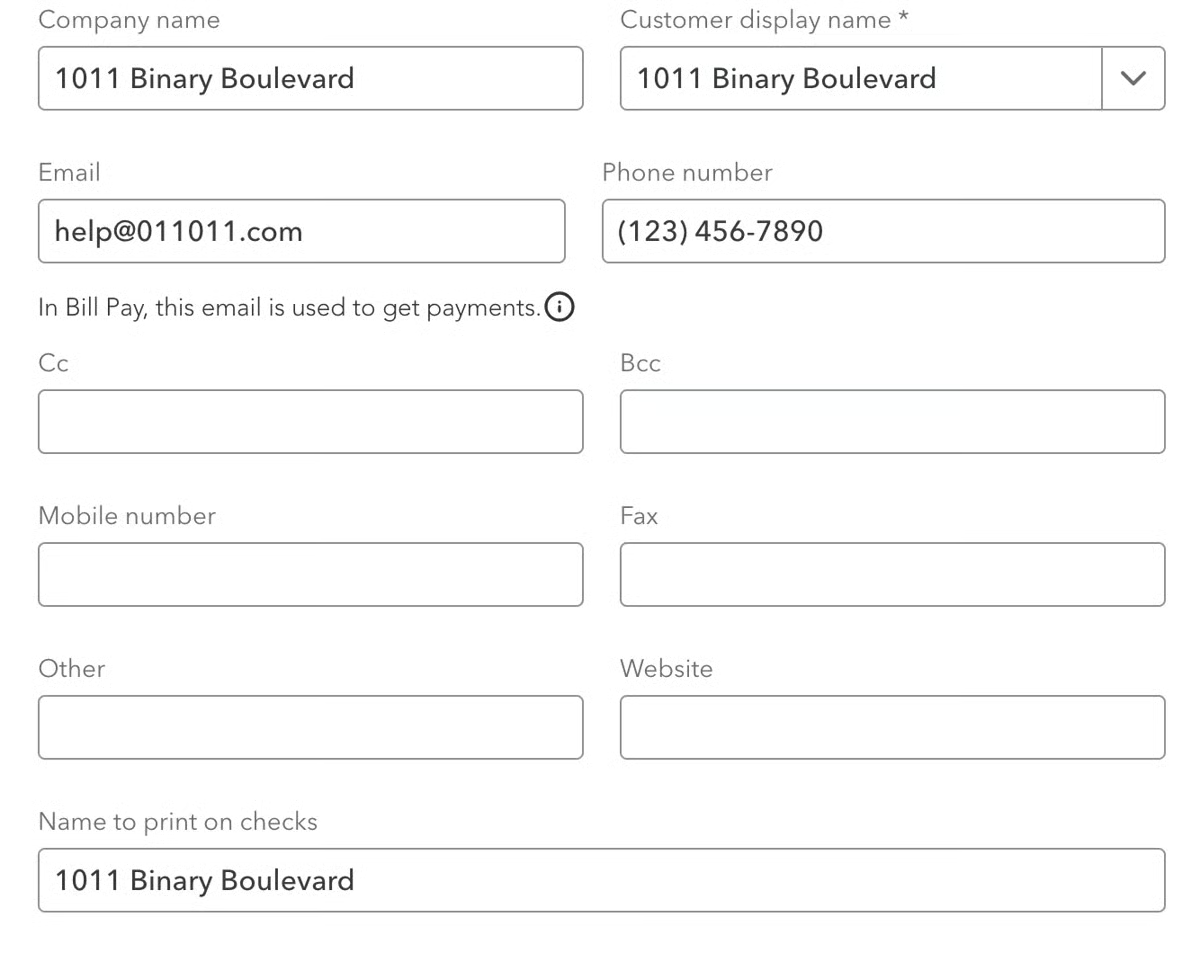
- 1011 Binary Boulevard and 404 Logic Lane properties would be set up as “customers”
- Nano Networks and Genesis Labs tenants would be set up as sub-customers
An example of this setup is shown below, with mandatory fields marked with an asterisk.
Note that subcustomers must have the box Is a sub-customer check, as shown below.
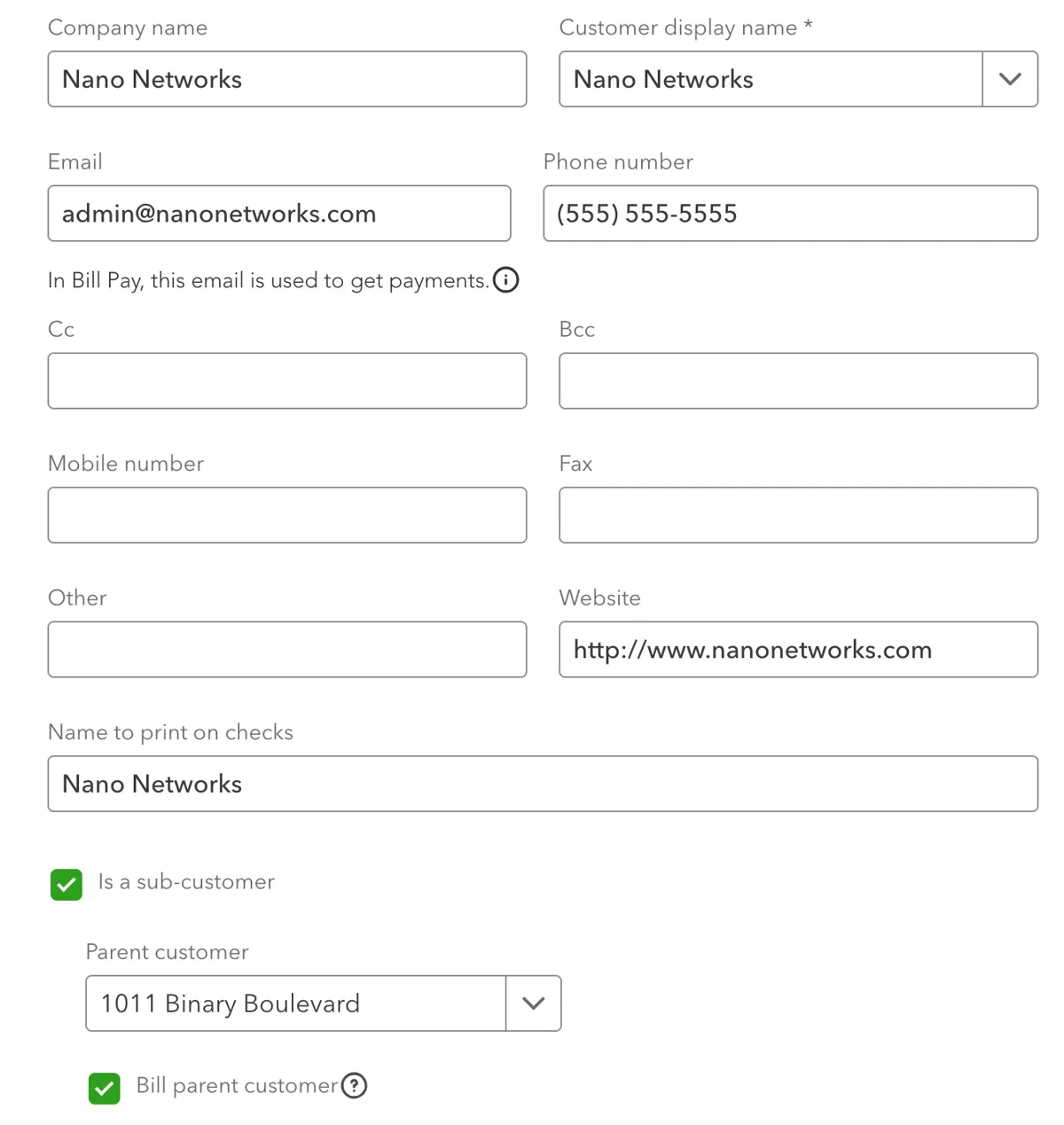
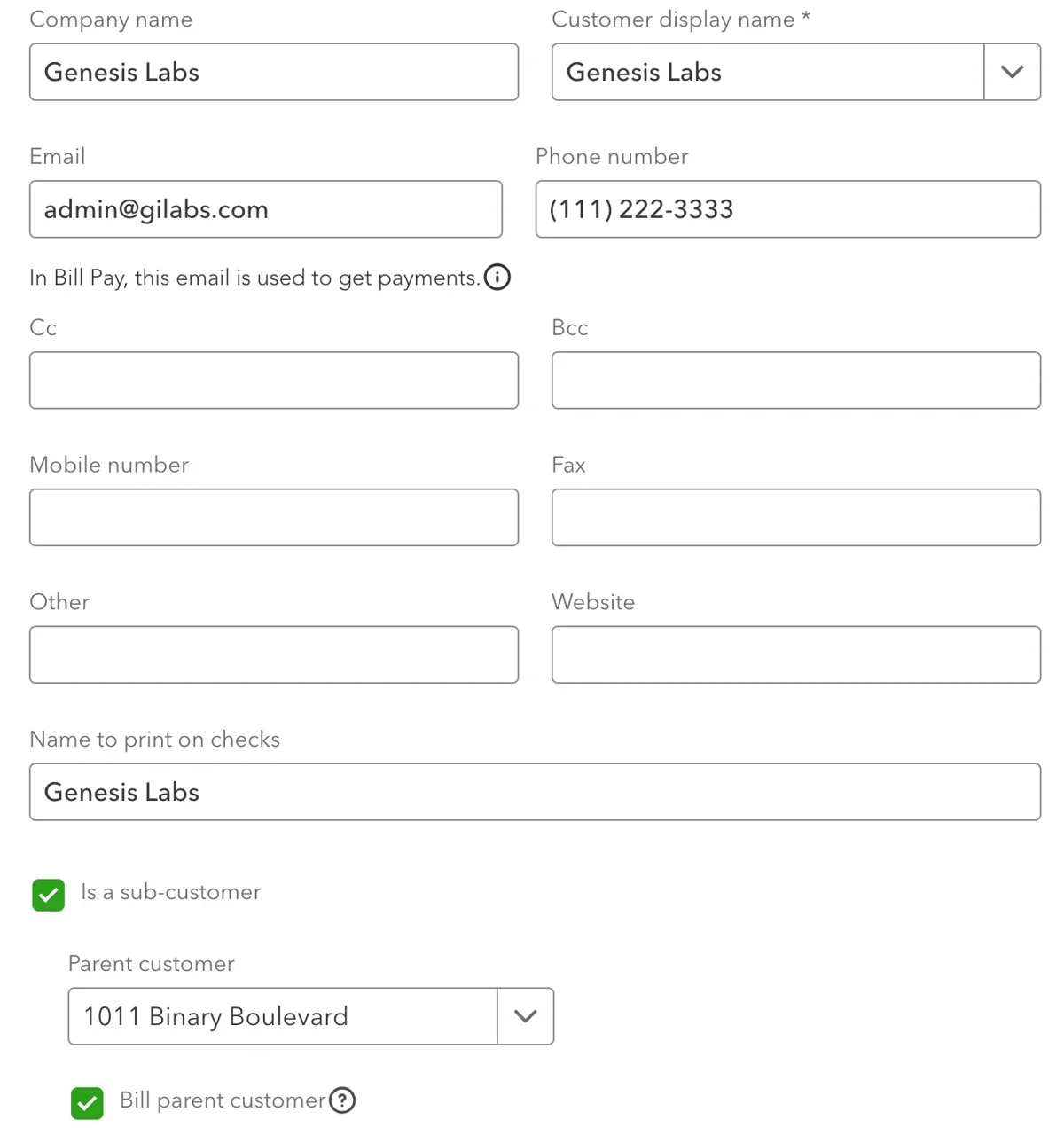
Setting up Nano Networks and Genesis Labs as subcustomers for 1011 Binary Boulevard in QuickBooks
Step 2: Set up income accounts.
To set up income accounts, find the menu for products and services in the search bar. Note that most of the functions that you can find using the “+” (Create) function can also be found in the search box, as shown below.

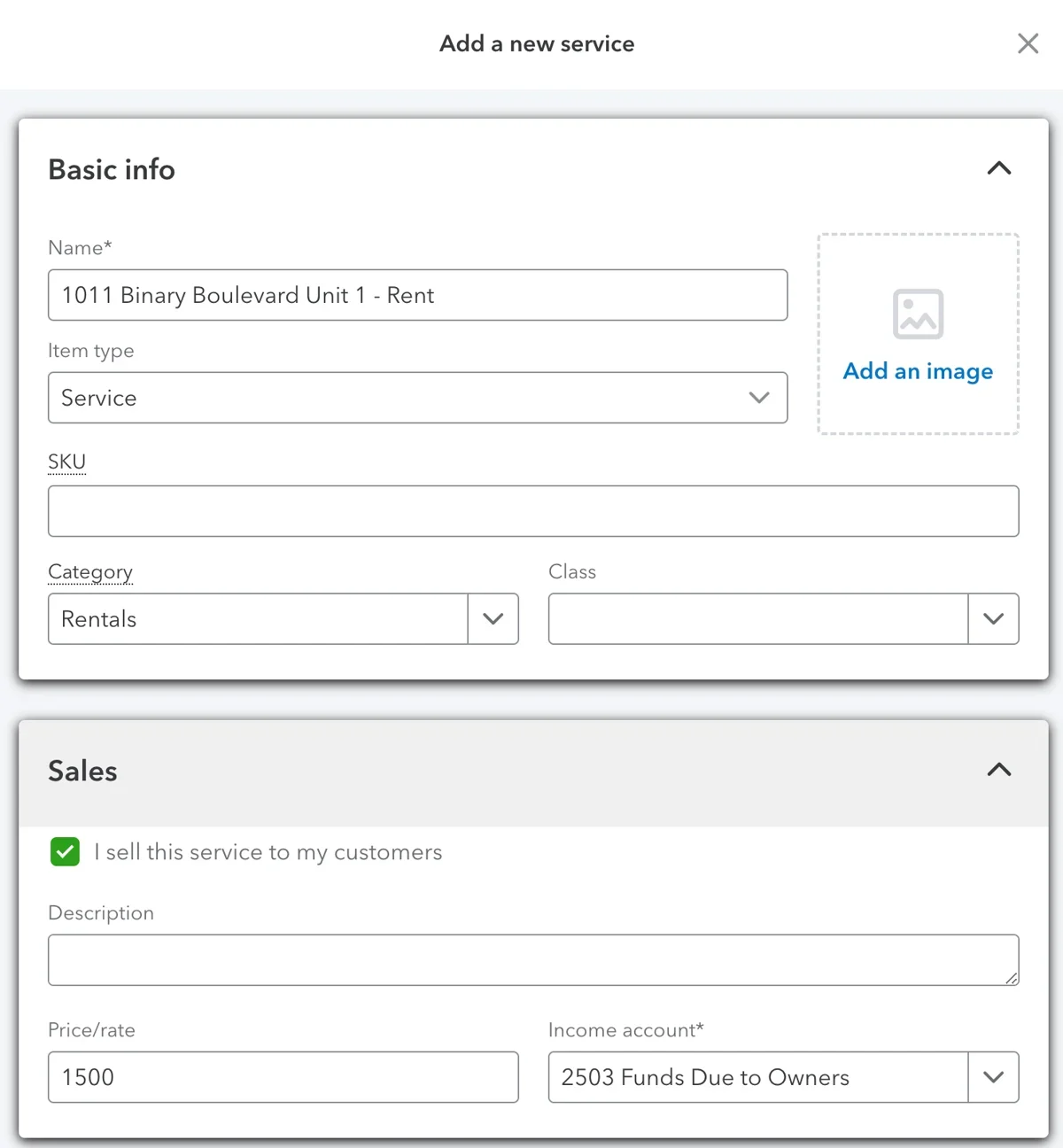
You’ll need to set up the income for rent collection from tenants. Note that the income account is the liability set up as “Funds Due to Owners.” This is done because the collection of rent is not income to the property management company. Instead, it is income to the owners, which is being collected by the management company.
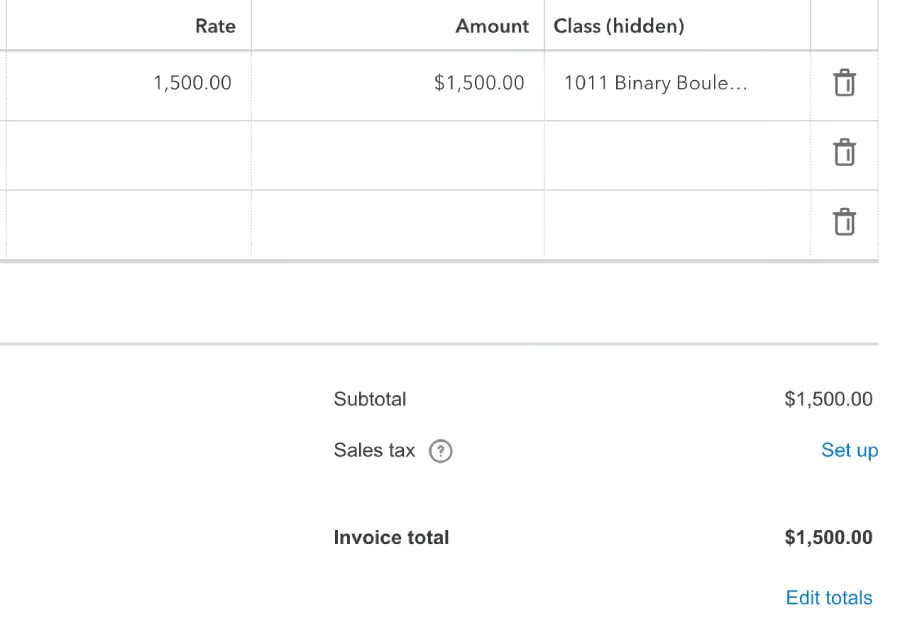
Also, be sure to include the rental rate. For Unit 1 (rented by Nano Networks), the rental rate is $1,500.
Step 3: Create recurring invoices.
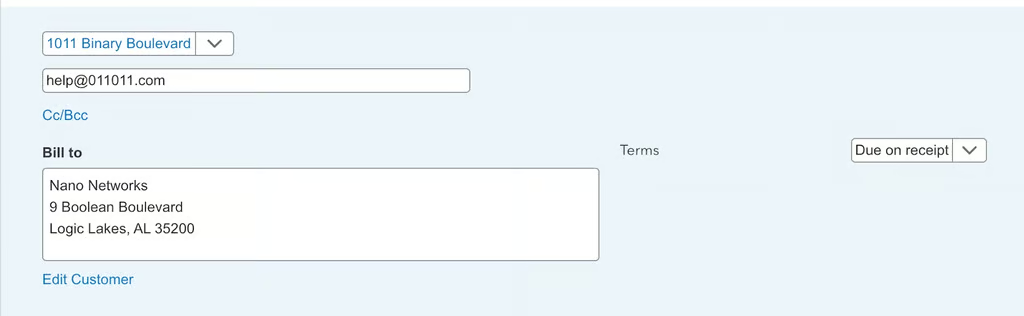
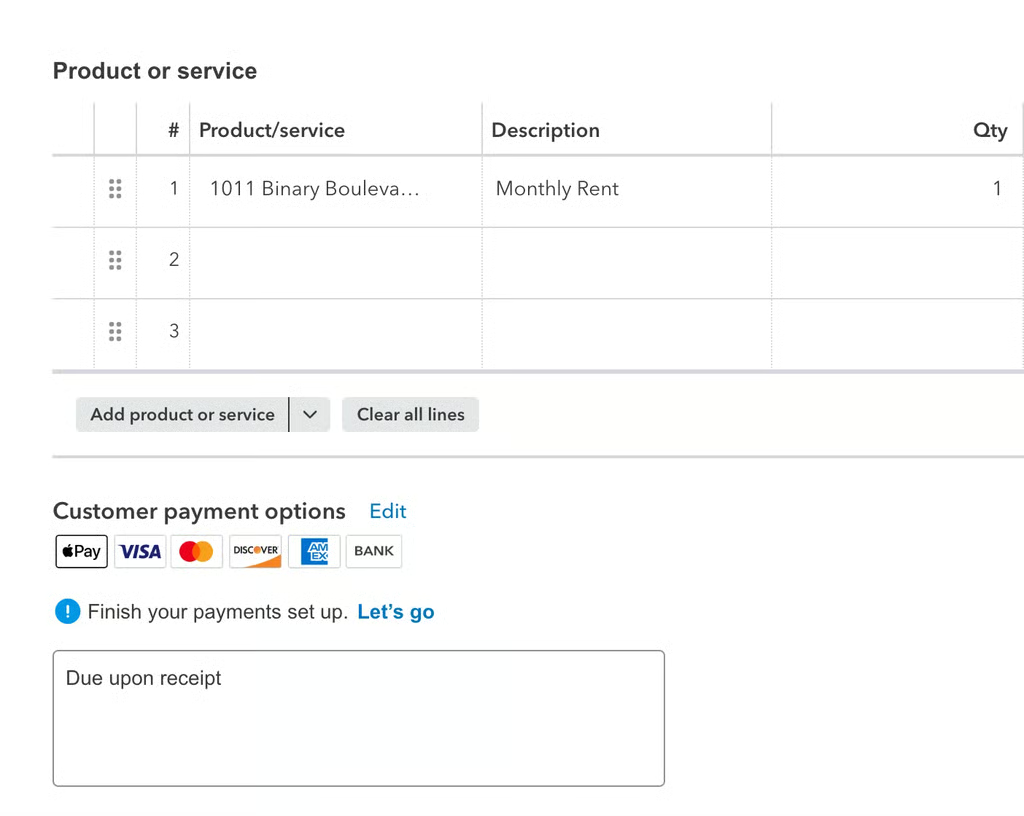
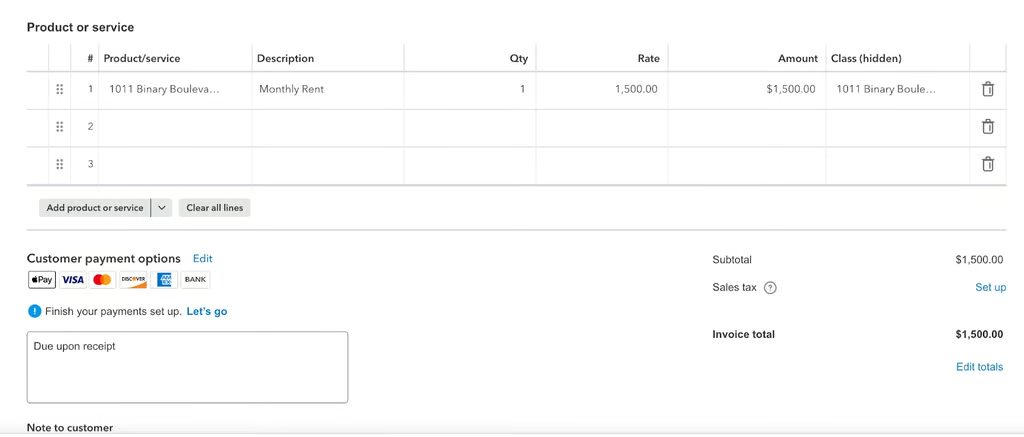
After setting up your customers, subcustomers, and the account for rent collection, you’ll next want to invoice the tenants for rent collection. Click the “+” (Create) button and select Invoice, or type “invoice” in the search bar referenced in the previous section.
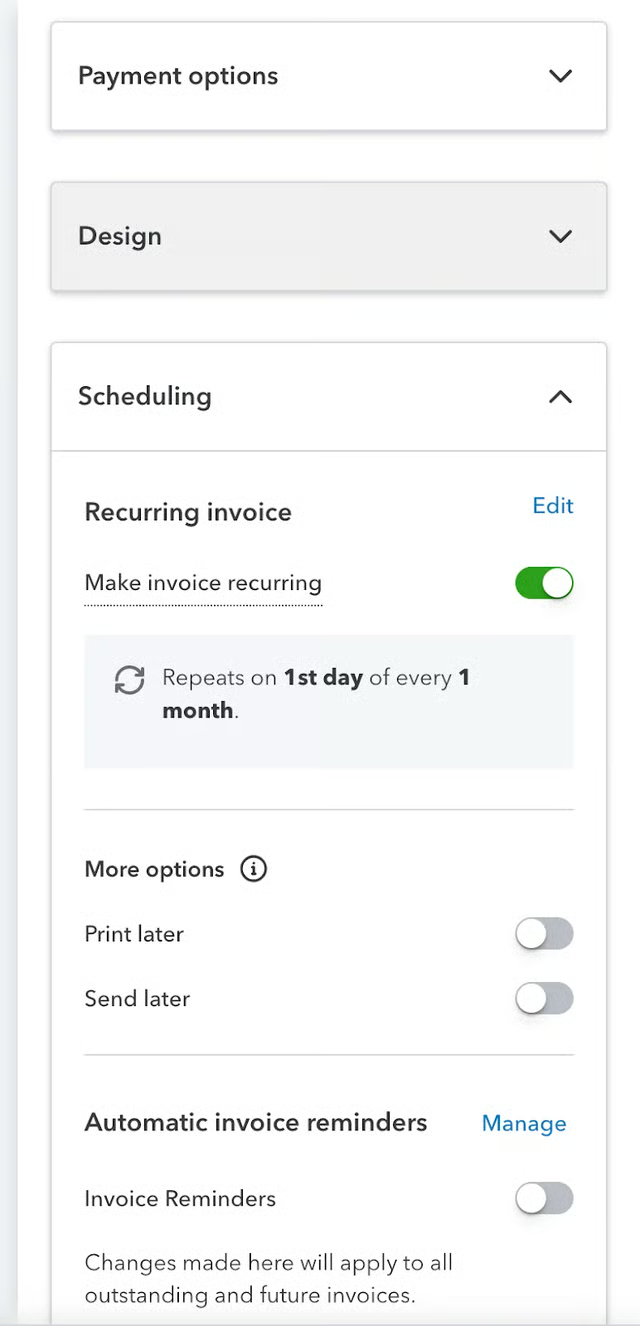
It will be helpful if you make it a recurring invoice so that you don’t have to recreate the invoice every month. To do so, follow the process below.
- Step 3.1: Fill out the invoice details for your tenant (such as amount, due date, rental period, and description).
- Step 3.2: Select the Make recurring option.
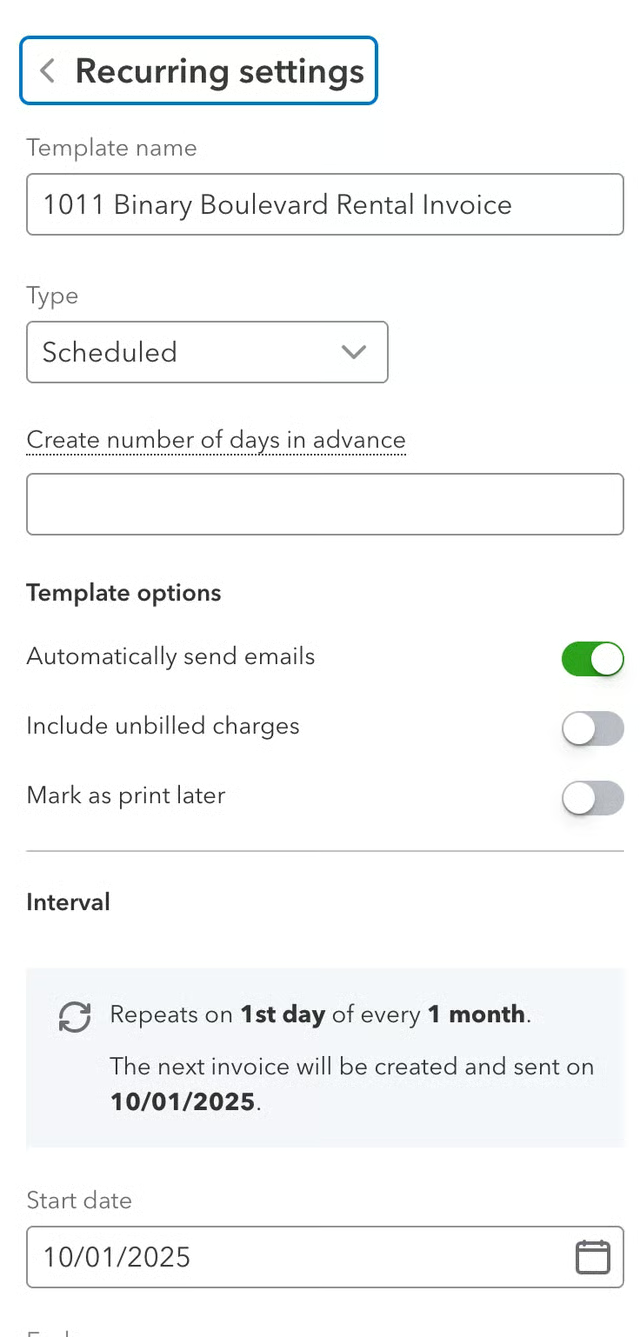
- Step 3.3: Name the recurring invoice series in “Template name.”
- Step 3.4: From the “Type” dropdown, choose Scheduled. This lets QuickBooks automatically create and send invoices on your chosen schedule.
- Step 3.5: Decide how often QuickBooks should send the invoice (e.g., monthly, weekly, etc.).
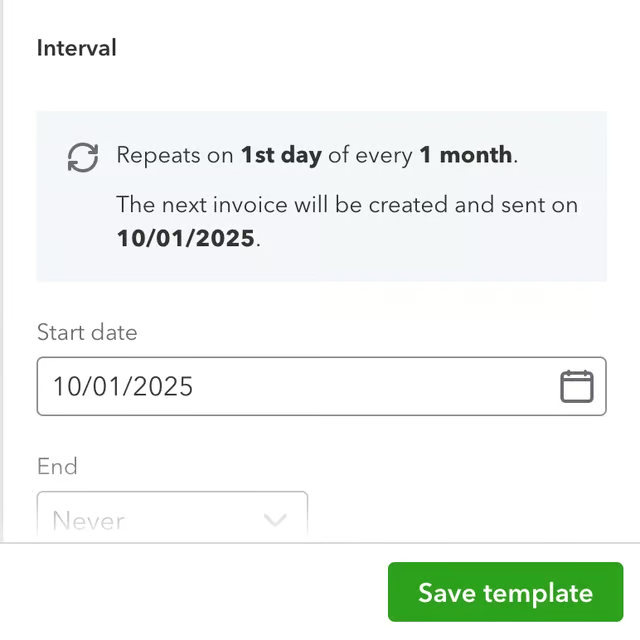
- Step 3.6: Specify the start/end dates.
- Step 3.7: Opt to have invoices automatically emailed.
- Step 3.8: Click the green Save template button.







Step 4: Receive payments.
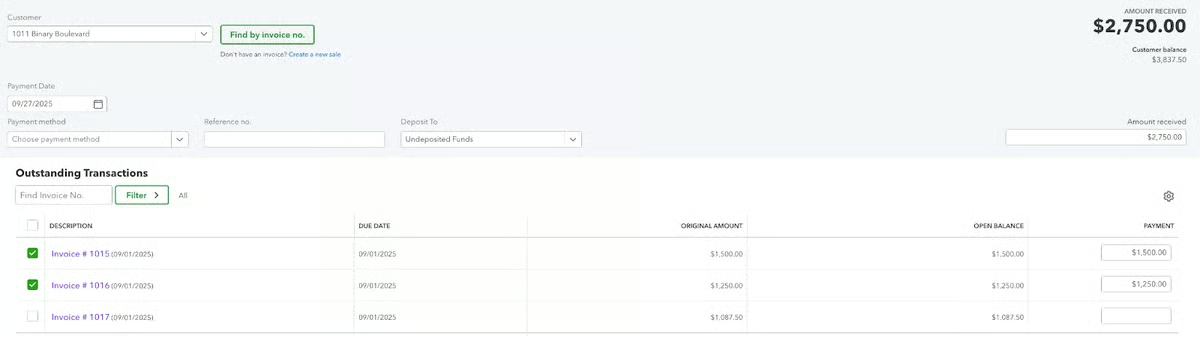
When the invoices are paid by the tenant, you’ll need to record the payments as received. At the top of each saved invoice, you’ll see “Receive Payment.” Select the green Save and close button.
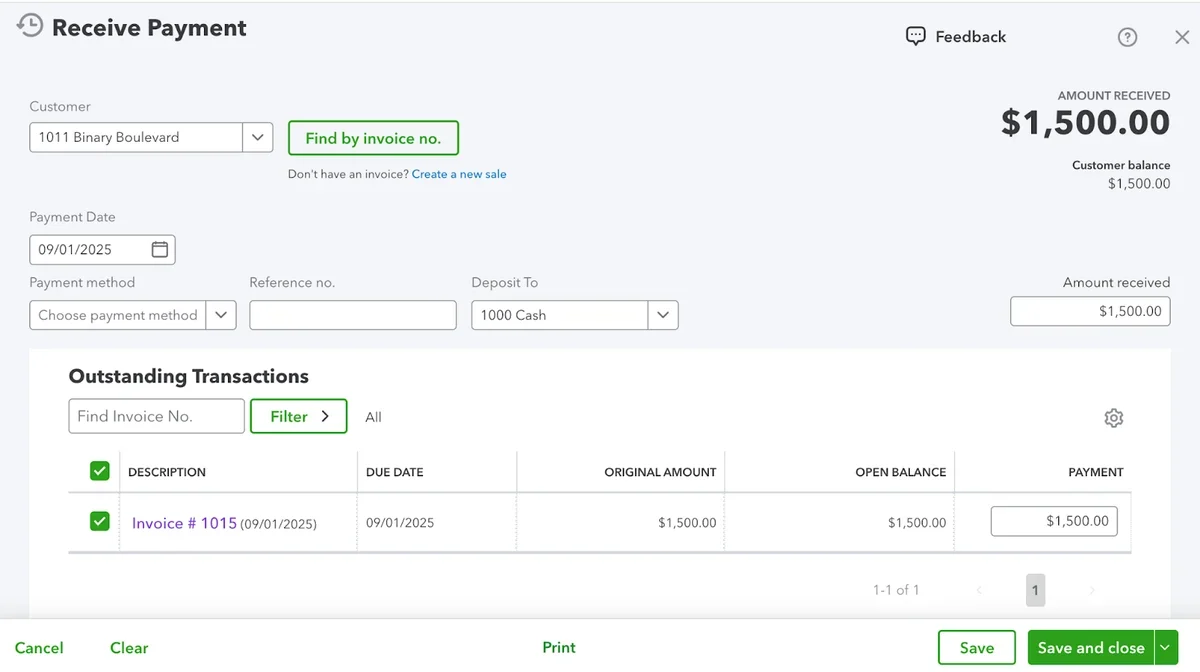
Note that while the tenant has sent the cash to you, the amount is still owed to the owner. In addition, the owner still needs to be charged for Gadget Garage’s management services.
Step 5: Record property-related expenses.
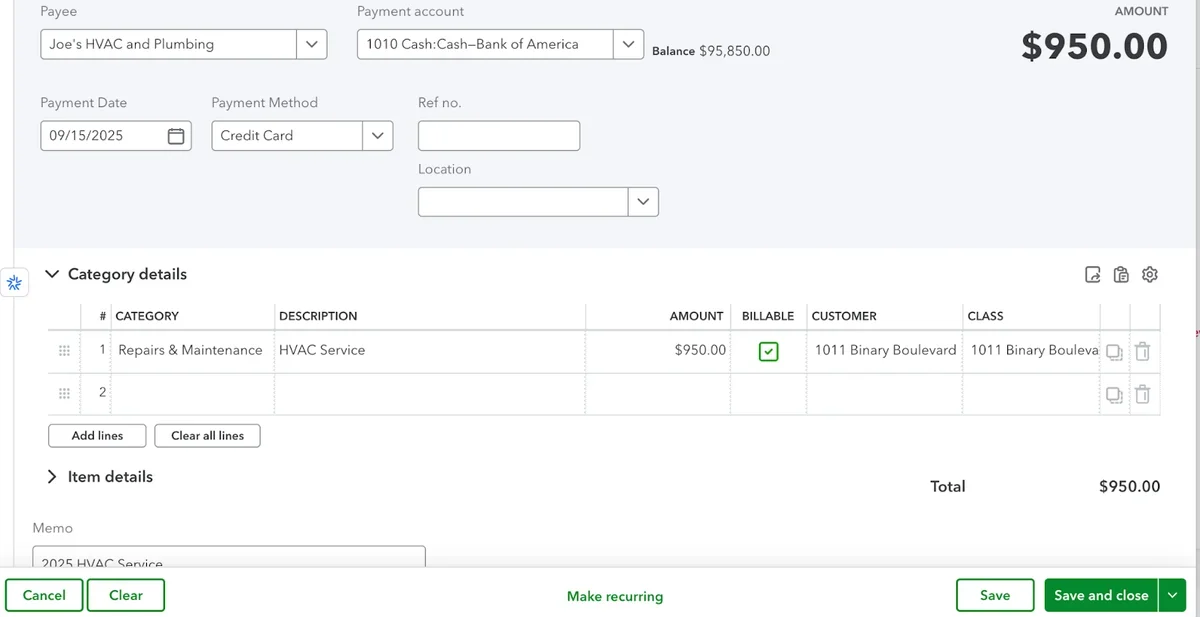
While property-related invoices may be paid by you as the property manager, you’ll need to bill the owner for those expenses then. Let’s assume that you are recording repairs and maintenance expenses for 1011 Binary Boulevard.
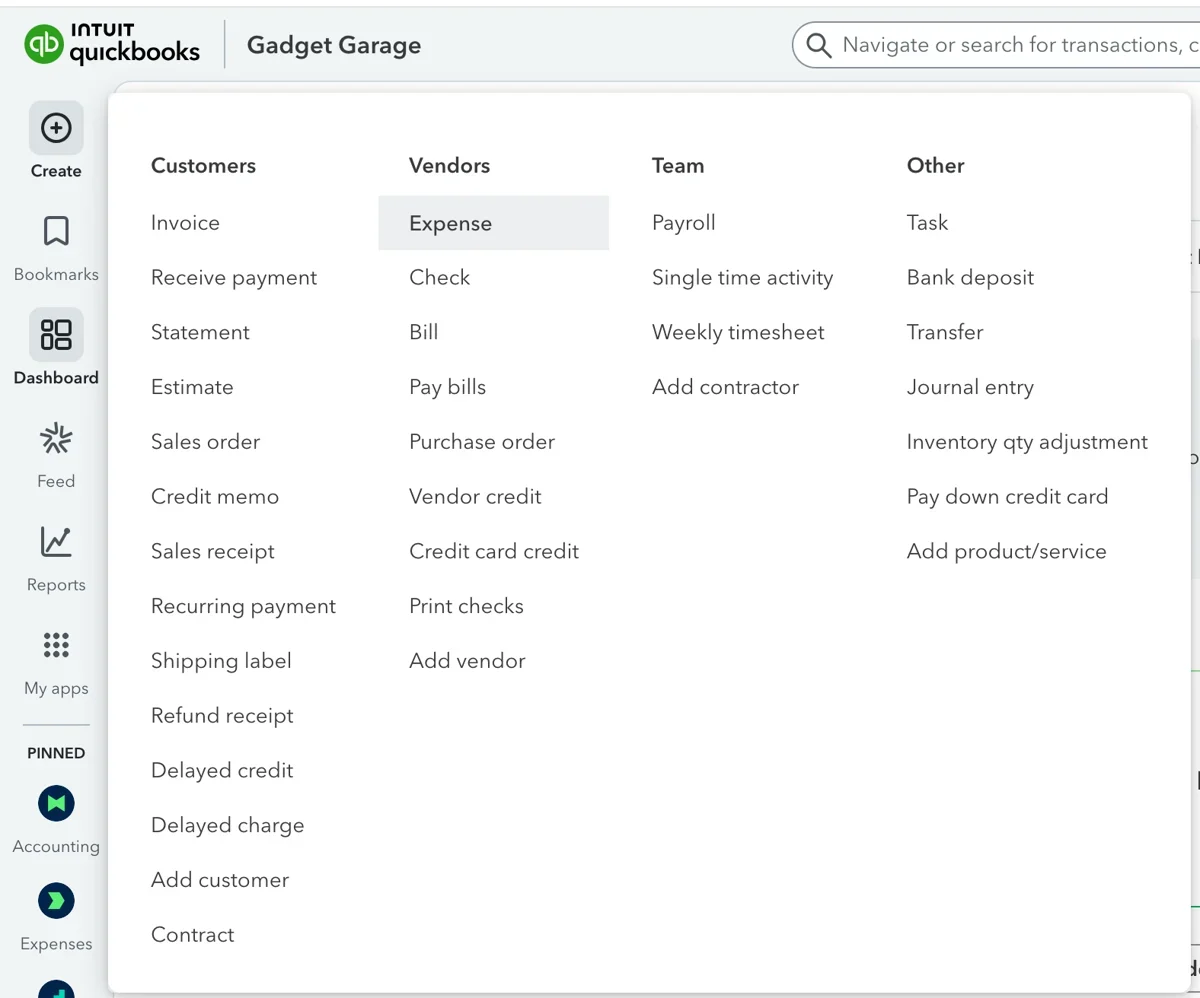
Click the “+” (Create) button, then select Expense. Complete the fields for the expense, as shown below.
Be sure to check the “billable” box so that the expenses can be passed on to the owner. If the expense is related to a specific unit (e.g., the unit rented by Nano Network vs. Genesis Labs), then you can select the specific tenant in the customer section. However, given the fact that the same owner is billed for both entities, it’s not mandatory to break out shared expenses at the subcustomer level.
A similar transaction would be done for each expense incurred by the management company over the course of the month (or other billing period if you bill the owners for a different time frame). At the end of the billing period, you’ll want to invoice the owners for the management services you performed and any expenses you paid on their behalf.
How to pay owners and collect management fees
When invoicing an owner, you have the option to bill them for all of their properties in one invoice or bill them separately. For purposes of this example, I’ll create one invoice for both units at the 1011 Binary Boulevard property. These invoices can also be set up as recurring.
Step 1: Create an invoice for the owner.
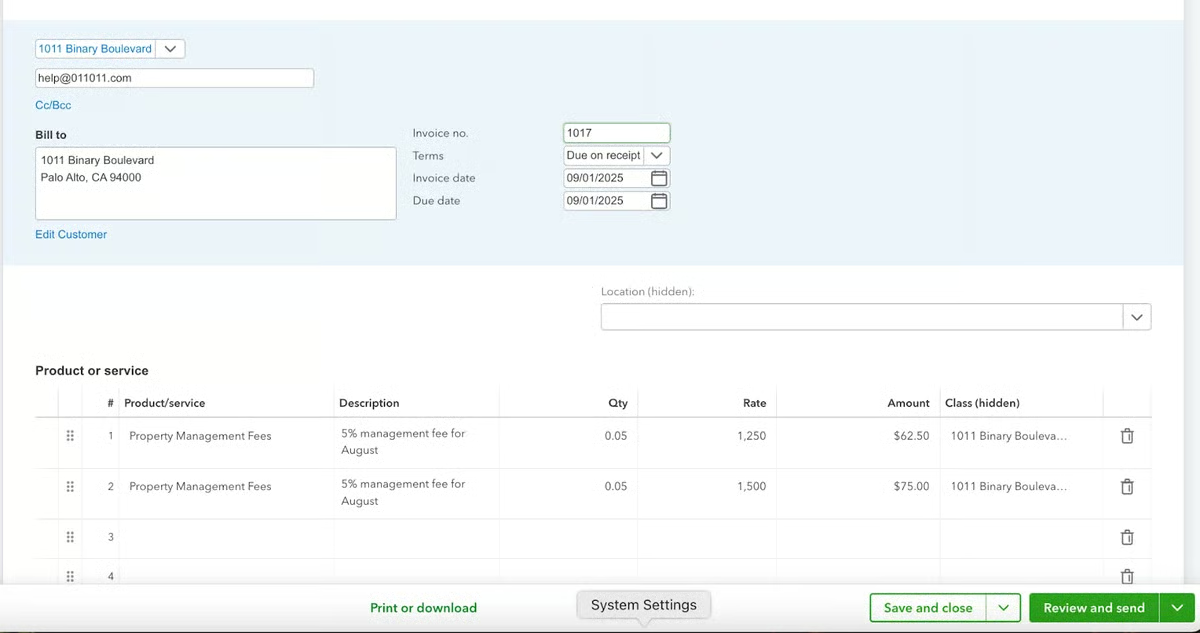
You should create an invoice for the owner that includes fees for managing the properties and any expenses paid on the owner’s behalf. Gadget Garage charges a management fee equal to 5% of the monthly rent.
In the example below, the monthly rent amount is entered as the rate, and the management fee percentage is entered as the quantity.
On the right side of the screen, you’ll see a menu that includes Suggested transactions.
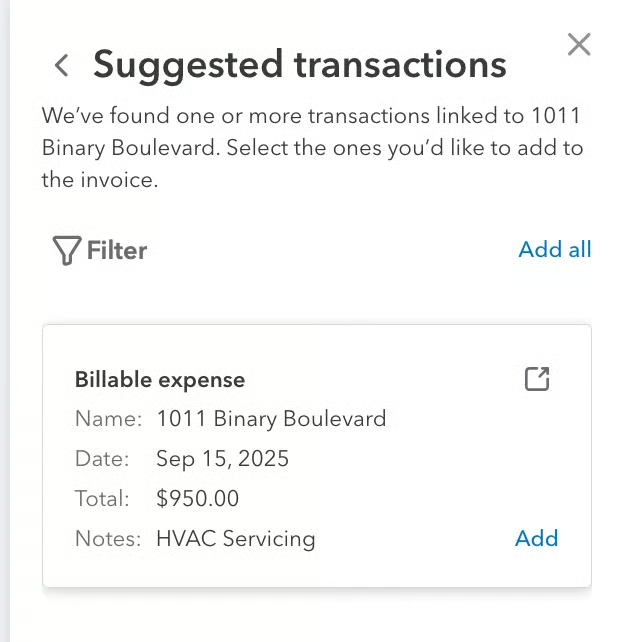
Select the expense(s) that you paid on behalf of the owners.

Step 2: Create a credit memo for rents collected.
When a property manager collects rent on behalf of the owner, those funds are a liability. The money is held for the owner and not recorded as income to the management company. If the owner also owes the management company for expenses or fees, the credit memo can be used to apply collected rents to reduce what the owner owes to the management company.
From the “+” (Create) menu, select Credit memo, and then complete the fields shown below.
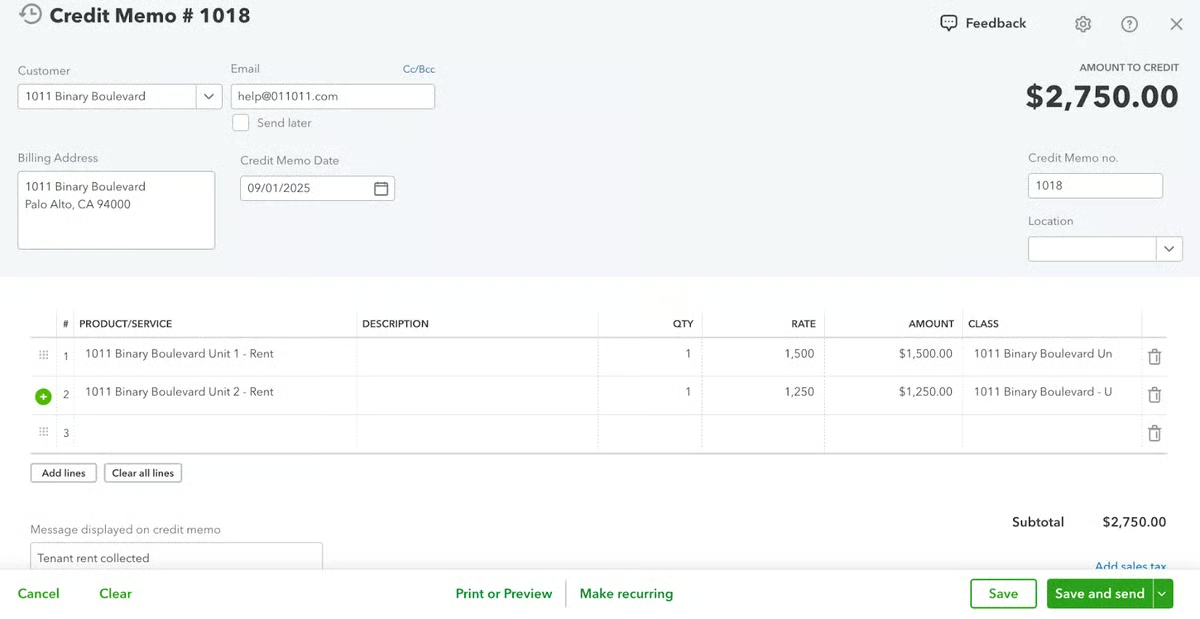
Here is a quick summary of the transactions that occurred in the previous steps so far:
| Recorded activity | Amount | Status |
|---|---|---|
| Property management fee - Unit 1 | ($75) | Invoiced |
| Property management fee - Unit 2 | ($62.50) | Invoiced |
| Repairs and maintenance | ($950) | Invoiced |
| Unit 1 Rent - Nano Networks | $1,500 | Credit memo |
| Unit 2 Rent - Genesis Labs | $1,250 | Credit memo |
| Net activity | $1,662.50 | Owed to owner |
Step 3: Pay out the owner.
Now that we have accounted for receipt of tenant rent payments, management fees, and reimbursable expenses, the last remaining step is to pay out the remaining balance of funds ($1,662.50) to 1011 Binary Boulevard.
This is recorded through an expense transaction. From the “+” (Create) button, select Expense.
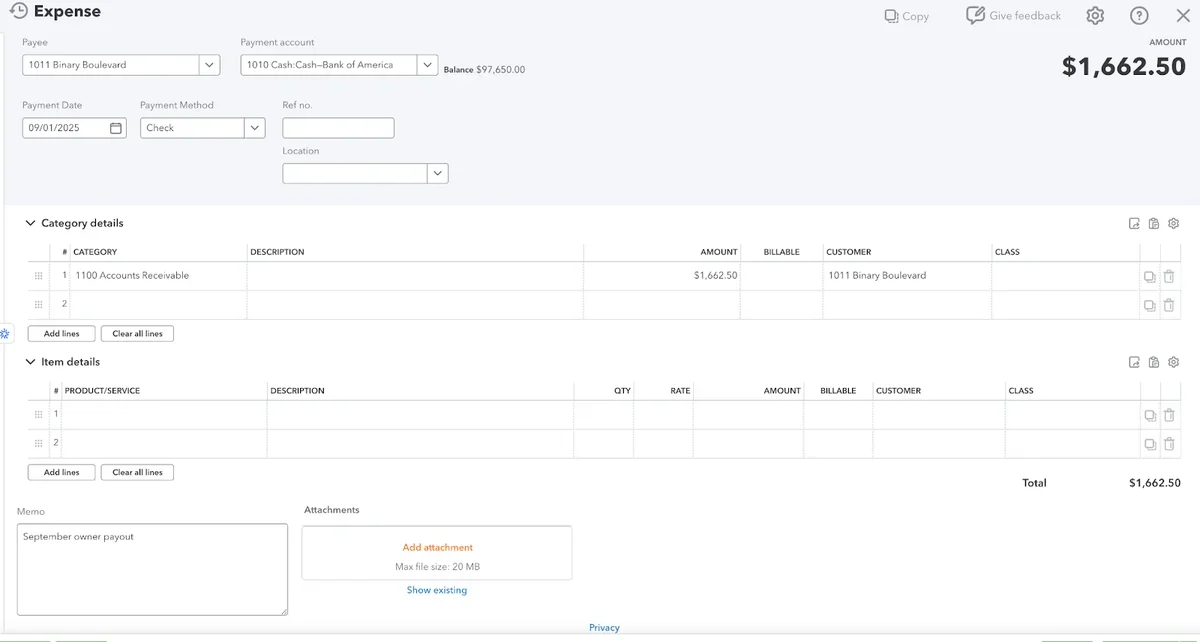
Once this payment is made, you’ll have satisfied your obligation to the client and received compensation for your services.
Expert tips for using QuickBooks effectively in property management
Managing properties is most effective when employing the following tips:
 Use classes/tags: Identify every transaction by property for quick report generation and cleaner audits.
- Set up recurring transactions: Automate monthly invoices for rent collection; use billable expenses for work order tracking.
- Prepare owner statements: Generate custom statements using vendor reports and reconcile frequently to ensure owner payout accuracy.
- Set up trust accounting: Create separate company files or bank accounts for tenant security deposits to maintain compliance.
- Customize your reporting: Build and schedule rent roll, owner statement, and expense reports for each property or owner. Customize further using QuickBooks Advanced Reports.
Related Articles
- 7 Best Property Management Software for Small Business
- Real Estate Accounting Guide: Best Practices and Tips
- 5 Best Real Estate Accounting Software for 2026
Alternatives to QuickBooks for property management
If QuickBooks does not suit your needs, here are some alternatives that might work for you.
 |  |  | |
|---|---|---|---|
| Best for | A simple interface | Small to midsize portfolios | Large portfolios |
| Monthly pricing | $69 | $45 | Custom |
| Features |
|
|
|
Frequently asked questions (FAQs)
Is it possible to allocate shared expenses (like landscaping or utilities) across multiple properties or owners within QuickBooks?
Yes. To allocate shared expenses, property managers can split transactions in expenses using classes or tags or by assigning proportions to each affected property.
How can QuickBooks be used to automate late fee billing for tenants?
QuickBooks can automatically add late fees to overdue tenant invoices by letting you set up rules in Account and Settings → Sales → Late fees. You can also enable automated reminders so that your tenants are notified of upcoming or overdue payments.
What is the best way to set up tracking for maintenance requests and vendor assignments in QuickBooks?
The best way is to use Projects or Classes/Tags to track each maintenance request, then assign related expenses and vendor bills to that project/class. This lets you monitor costs per request, see which vendor handled it, and generate clear reports on maintenance activity.