




































Learning how to use QuickBooks for rental properties can seem overwhelming. We will walk you through key steps to keeping clean, organized books, from setting up your company file and creating services to adding tenants and creating property-level reports. You’ll also see how class and location tracking provide the flexibility to monitor each property separately while aligning with tax forms like Schedule E.
- Before you start
- Step 1: Set up your company.
- Step 2: Assemble your chart of accounts.
- Step 3: Turn on and set up classes and locations.
- Step 4: Create your services.
- Step 5: Add your tenants as customers.
- Step 6: Set up recurring invoices.
- Step 7: Record depreciation.
- Step 8: Know your essential reports.
- Frequently asked questions (FAQs)
Before you start
For rental property accounting, ensure you’re subscribed to QuickBooks Online Plus or Advanced. Both plans include class and location tracking for property-level reporting. This makes it easier to prepare clean Schedule E-ready reports without extra spreadsheets.
- QuickBooks Online Plus: $115 per month for up to five users; works for smaller portfolios but has tracking limits
- QuickBooks Online Advanced: $275 per month for up to 25 users; removed Plus’s caps and automates fixed-asset depreciation, saving time and reducing errors
QuickBooks is currently offering 50% for three months if you sign up right away. Otherwise, you can choose the 30-day free trial and pay the regular price after the trial.
Read on to learn the best way to use QuickBooks Online for real estate rental properties.
Step 1: Set up your company.
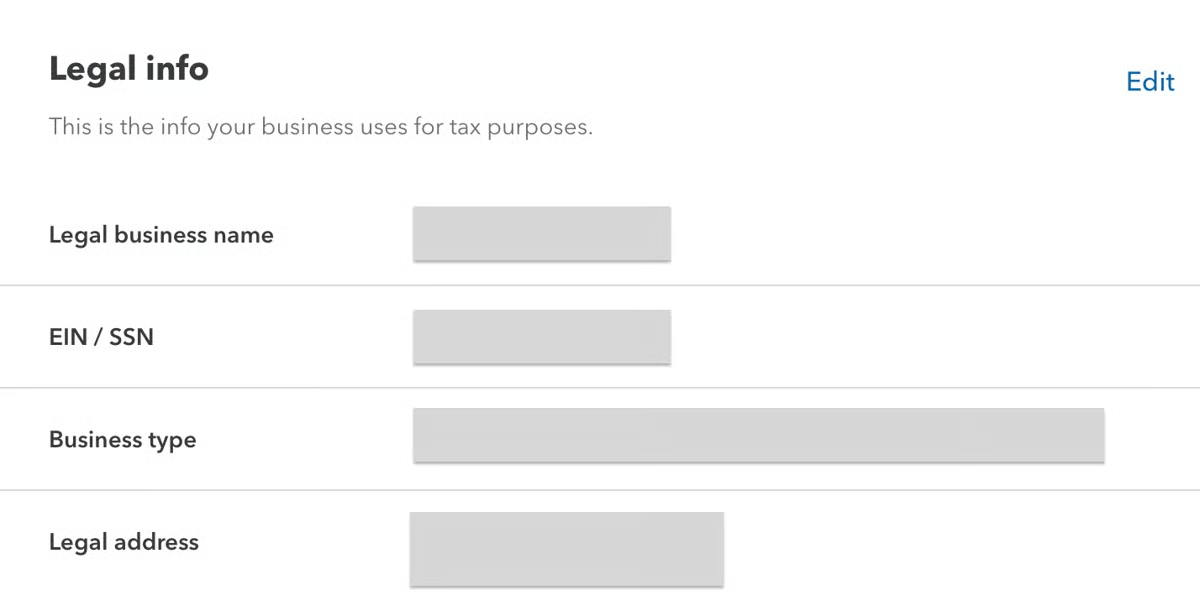
If you’re new to QuickBooks, you’ll be guided to a quick company setup. However, you can change these settings after account setup.Click the cogwheel icon (⚙︎) and select Account and settings. Pay attention to the legal info section and modify it accordingly. Click Edit to change the information.
Read my real estate accounting guide to learn about how to set up your real estate accounting systems.
Step 2: Assemble your chart of accounts.
I suggest setting up the chart of accounts to mirror IRS forms, such as Schedule E or Form 8825. By aligning income and expense categories with the tax lines and tying every transaction to a Class for each property, landlords can simplify tax prep, keep reporting consistent, and see their performance clearly.
Property-specific costs — such as repairs, insurance, taxes, and utilities — should go under cost of goods sold, since they are direct costs of generating rental income. Meanwhile, general business expenses — like office, software, and marketing — belong under Operating Expenses.
Below is an example of how to map out the chart of accounts based on Schedule E line items:
| Account name | Example expenses | Schedule E line |
|---|---|---|
| Advertising | Craigslist, Zillow ads | Line 5 |
| Auto & travel | Mileage to property, inspections | Line 6 |
| Cleaning & maintenance | Lawn care, janitorial, pest control | Line 7 |
| Commissions | Leasing agent fees | Line 8 |
| Insurance – property | Property insurance premiums | Line 9 |
| Legal & professional fees | Attorney fees for leases, evictions | Line 10 |
| Management fees | Property management companies | Line 11 |
| Mortgage interest | Interest on rental loans (to banks) | Line 12 |
| Other interest | Interest not paid to banks (seller/individual) | Line 13 |
| Repairs | Plumbing, painting, minor fixes | Line 14 |
| Supplies | Light bulbs, keys, filters | Line 15 |
| Property taxes | Real estate taxes | Line 16 |
| Utilities | Gas, electric, water, sewer | Line 17 |
| Depreciation | From fixed asset schedule/Form 4562 | Line 18 |
It’s also best to keep the chart of accounts generic rather than naming accounts after properties and to use classes for the property-level detail. This approach makes it possible to run a Profit and Loss by Class report that aligns closely with tax forms while showing profitability at both the property and business level.
Step 3: Turn on and set up classes and locations.
QuickBooks Online is not specifically designed for landlords or rental property management. However, with classes and locations, you can simulate the tracking you need as a workaround. This setup allows for cleaner property-level reports without relying on outside spreadsheets.
Here’s my recommendation:
- Use classes for specific properties, such as “Maple Street Duplex” or “Pineview Apartments.”
- Use locations for businesses, like “Oakwood Rentals LLC” or “Downtown Properties Inc.”
This works because QuickBooks Online only allows one location per transaction, such as an invoice or expense. However, you can assign multiple classes at the line-item level, which makes it possible to split costs across different properties.
For example, if you receive a $500 utility bill that covers two properties, you can tag the transaction with one location (say “Oakwood Rentals LLC”) but split the line items: $300 to the class “Maple Street Duplex” and $200 to the class “Pineview Apartments.” This ensures accurate property-level reporting while keeping your business-level tracking intact.
Turning on classes and locations
If you’re new to QuickBooks, go to the cogwheel icon (⚙︎) and click on Accounts and settings. Navigate to Advanced and look for Classes and locations.
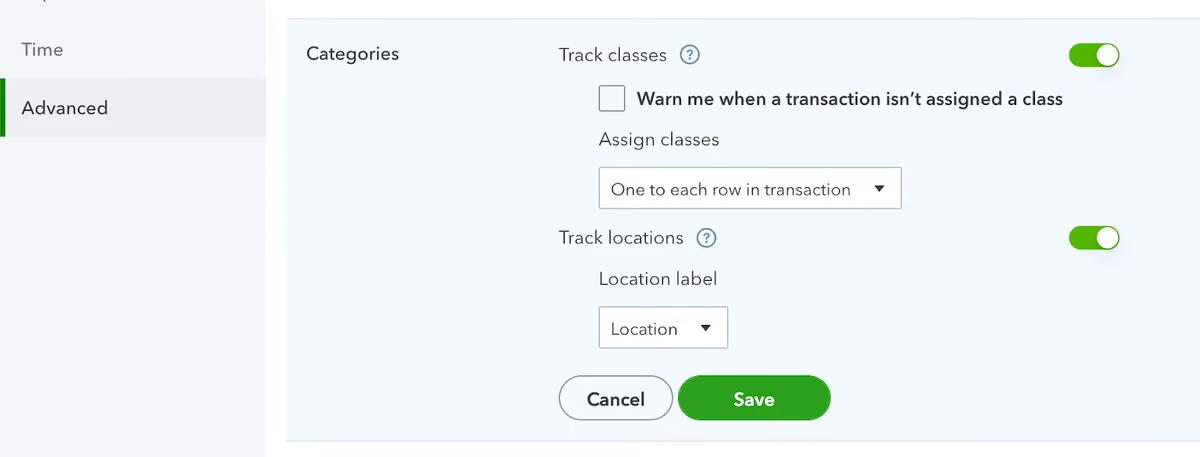
The settings shown in the image above are important because they determine how transactions are categorized. By choosing “One to each row in transaction” in tracking classes, you allow multiple classes to be assigned per line item, which is essential when splitting expenses across different properties.
The Location label can also be changed, giving flexibility to rename it in a way that matches how you organize your rental portfolio. For example, you can change the label “location” to “Property,” “Business,” or “Building.” This customization, combined with class tracking, ensures more accurate reports and cleaner Schedule E preparation.
Creating classes and locations
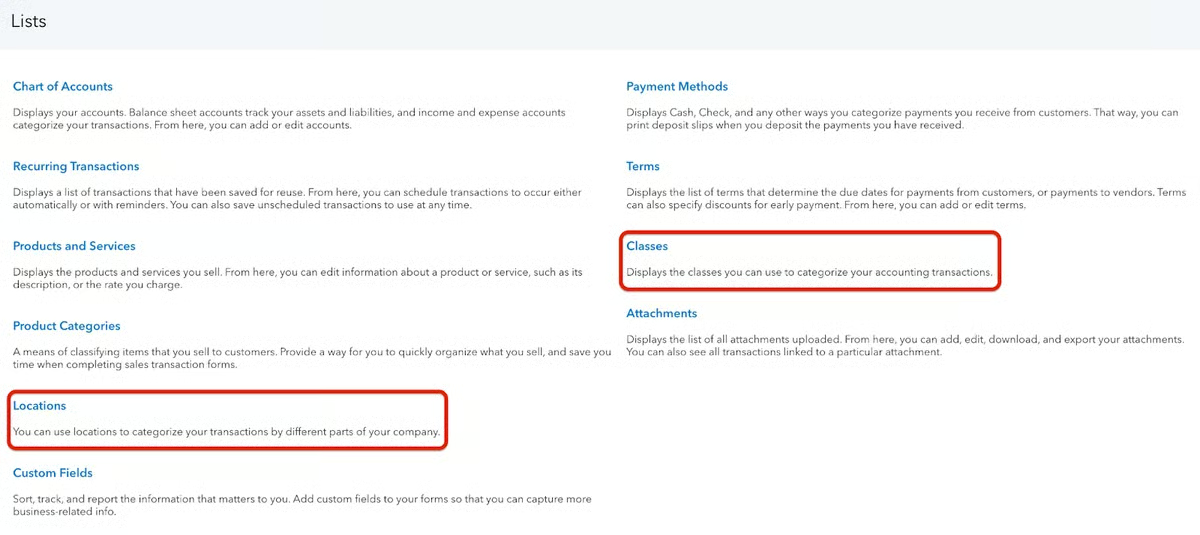
Once you’re set, hit Save and go back to the dashboard. Click the cogwheel icon (⚙︎) and select All lists. From there, click Classes or Locations, whichever you want to create first.
The image below shows the Location Information setup in QuickBooks Online. For rental property accounting, this is where you define each rental business or entity so that you can track income and expenses separately.
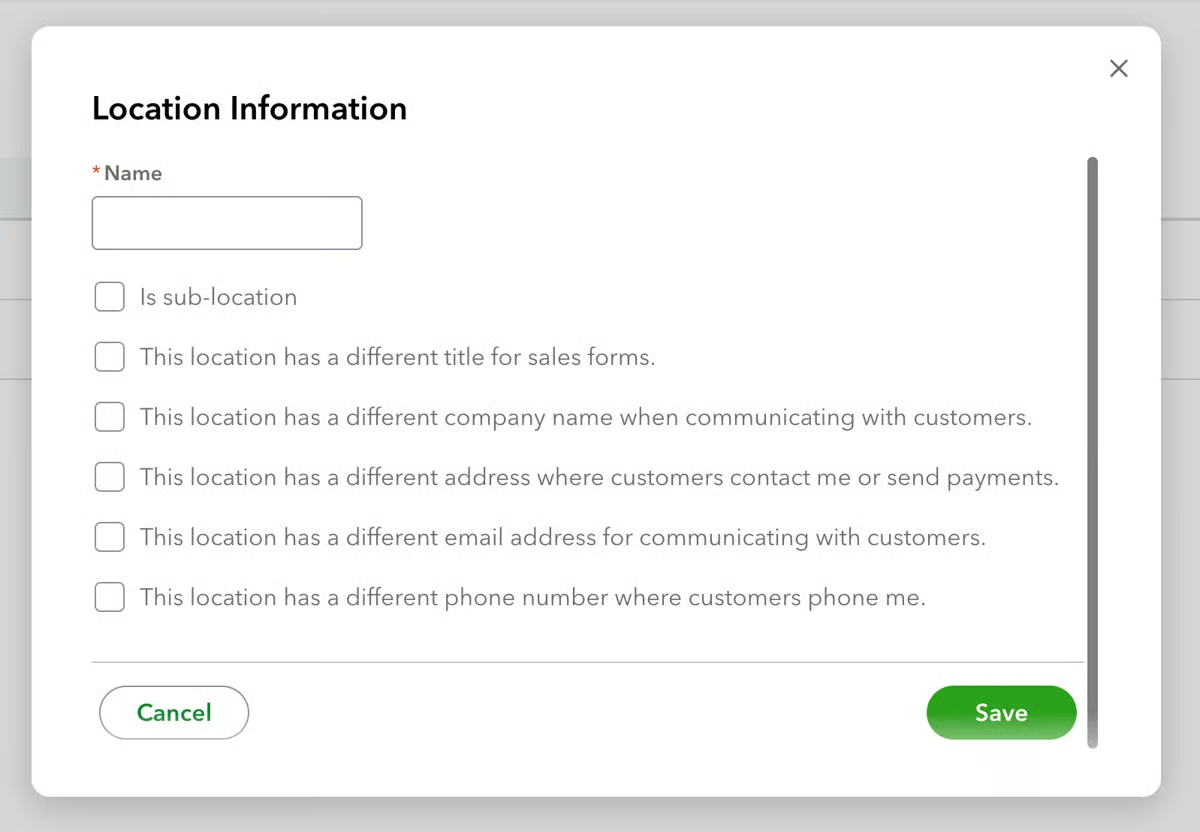
- Name: Enter the business name you want to track, such as Oakwood Rentals LLC or Downtown Properties Inc.
- Is sub-location: Use this if you want to nest locations under a parent (for example, a sublocation for East Wing under Maple Street Apartments).
- Different titles, company names, addresses, emails, or phone numbers: Check these boxes only if this location needs unique information for invoices, customer communication, or payments. For rental property purposes, most landlords leave these unchecked unless each business operates with distinct contact details.
The next image shows the Class setup in QuickBooks Online. Classes are used to track income and expenses for specific rental properties, units, or projects.
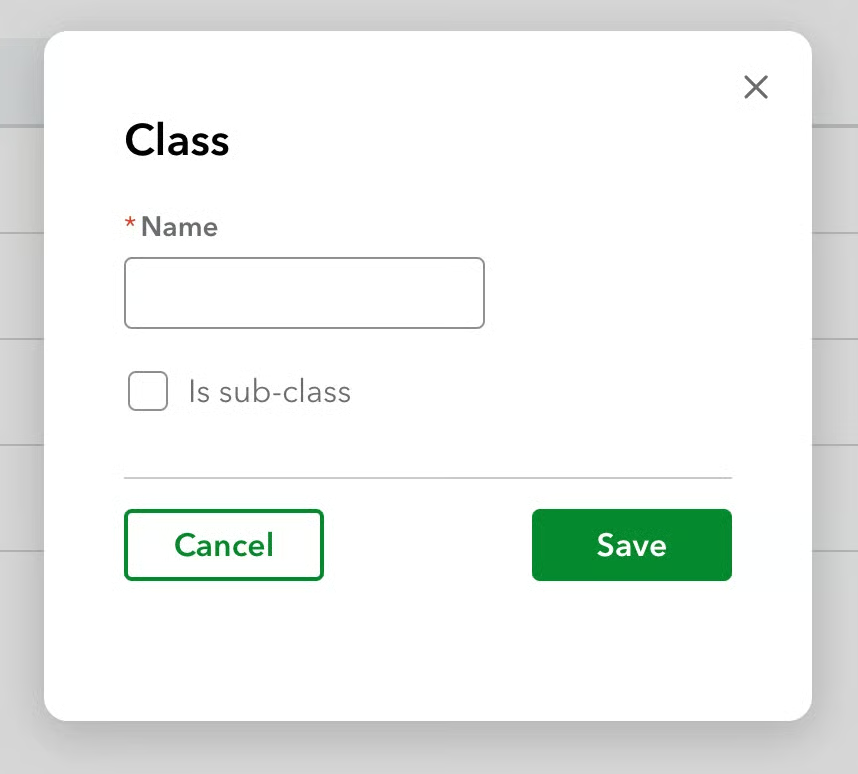
- Name: Enter the property or unit name, such as Maple Street Duplex or Pineview Apartments. This lets you run profit and loss reports by property.
- Is sub-class: Check this if you want to create a hierarchy. For example, set Maple Street Apartments as the main class, then create subclasses like Unit 1 and Unit 2.
QuickBooks Online Plus can only have up to 40 classes, which can be limiting if you have more than 40 properties. I suggest upgrading to QuickBooks Online Advanced for unlimited classes. You may also check out our roundup of the best real estate accounting software for more options.
Step 4: Create your services.
Go back to the Lists menu and select Products and Services. Then, in the upper right corner, click New and then select Service to create a new service item.
In a rental property business, services are often used for income streams like rent, late fees, or other tenant charges. Setting them up correctly ensures clean invoicing and accurate income tracking.
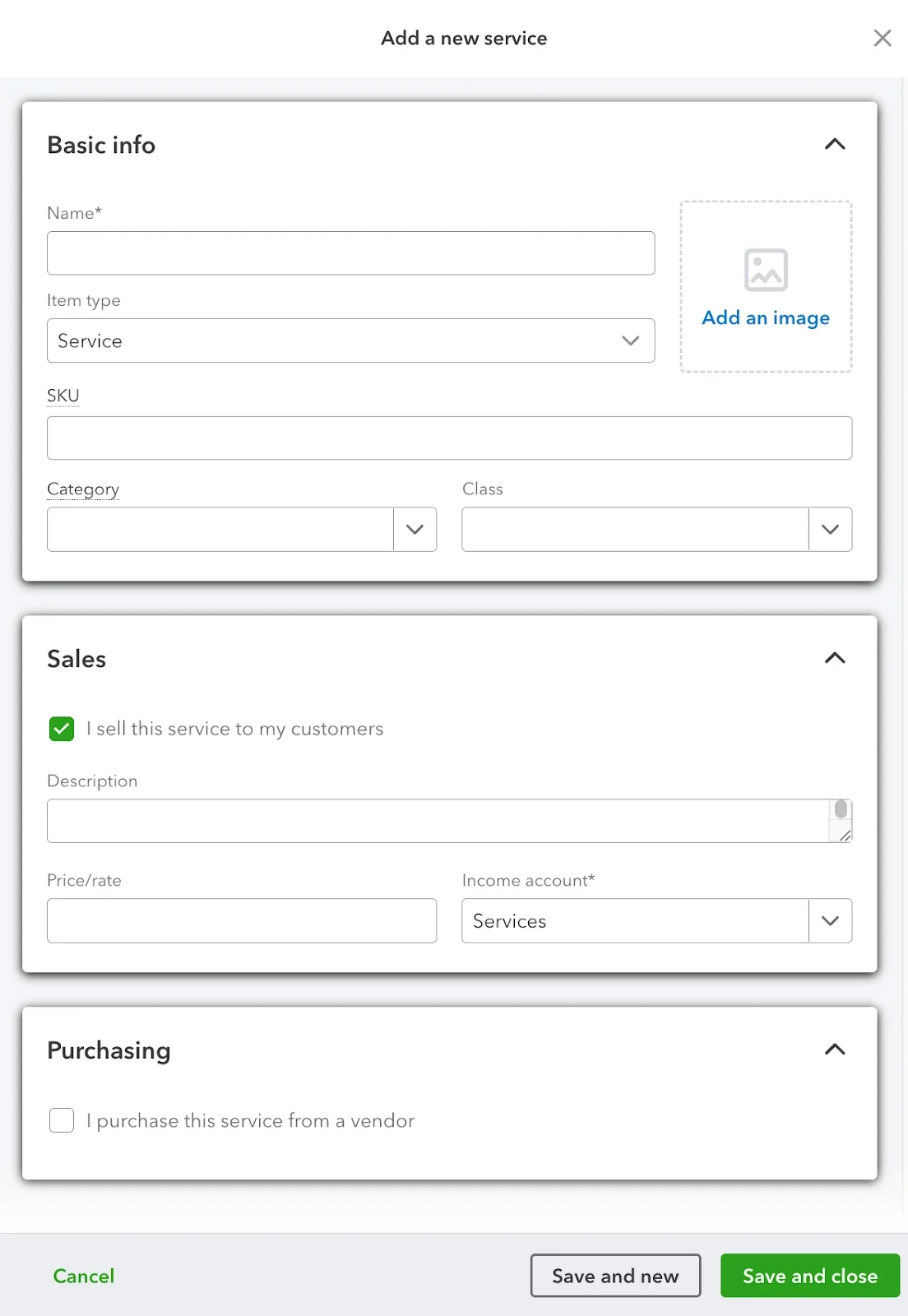
Here’s what to complete to create a service for rentals:
- Name: Enter the service, such as Residential Rent, Commercial Rent, or Late Fee.
- Category: Use Rental Income or create a custom category to group property income.
- Class: Leave this blank if you have multiple rental properties.
- Description: Add details that will show on invoices, like “Monthly rent for Maple Street Duplex.”
- Price/rate: Enter the monthly rent amount, or leave it blank if it varies.
- Income account: Select or create Rental Income in your chart of accounts.
Step 5: Add your tenants as customers.
Now it’s time to add your tenants as customers. Navigate to the left-side menu bar and click the + Create button. Select Add customer to add a new one. You’ll be filling out basic information, such as your name, company, and address. I will not go into detail in those areas, as they are self-explanatory.
What I want to emphasize is this section:
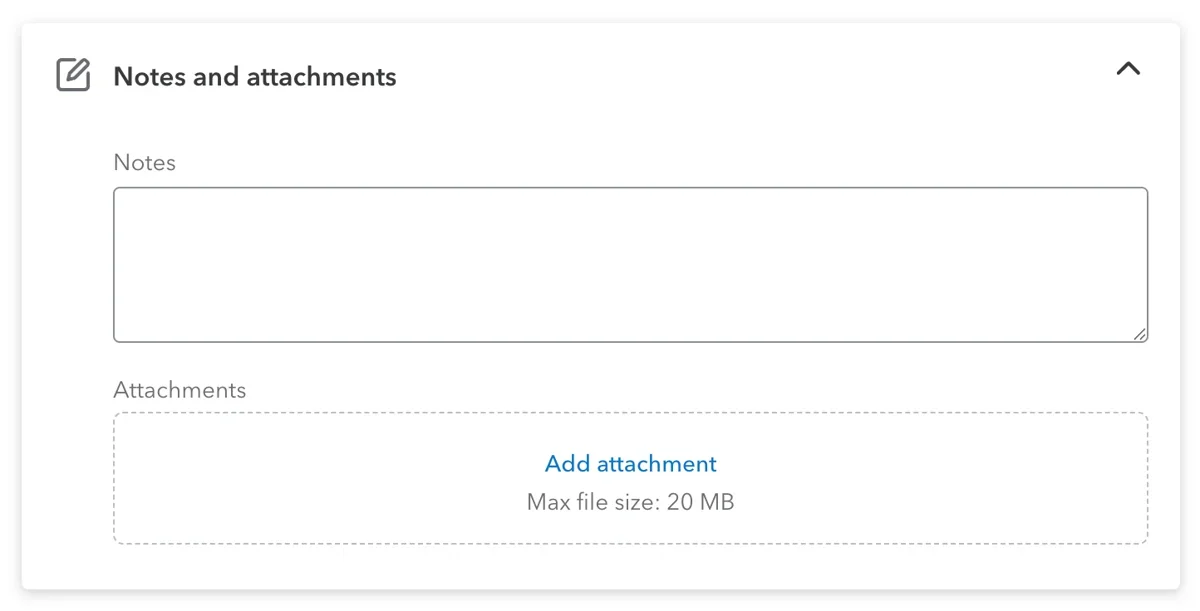
The Notes and attachments section can be very useful for rental property tracking. You can add notes that relate to a specific customer or tenant, such as reminders, lease terms, or maintenance details.
The Attachments field lets you upload important property documents, like lease agreements, tenant applications, or insurance certificates. By keeping these files linked directly to the customer profile, you centralize property records in one place and make it easier to access contracts or supporting documents when reviewing transactions or preparing reports.
Another section that might be important to you is Additional info. It is important because it lets you capture details that affect how customers or tenants are tracked financially.
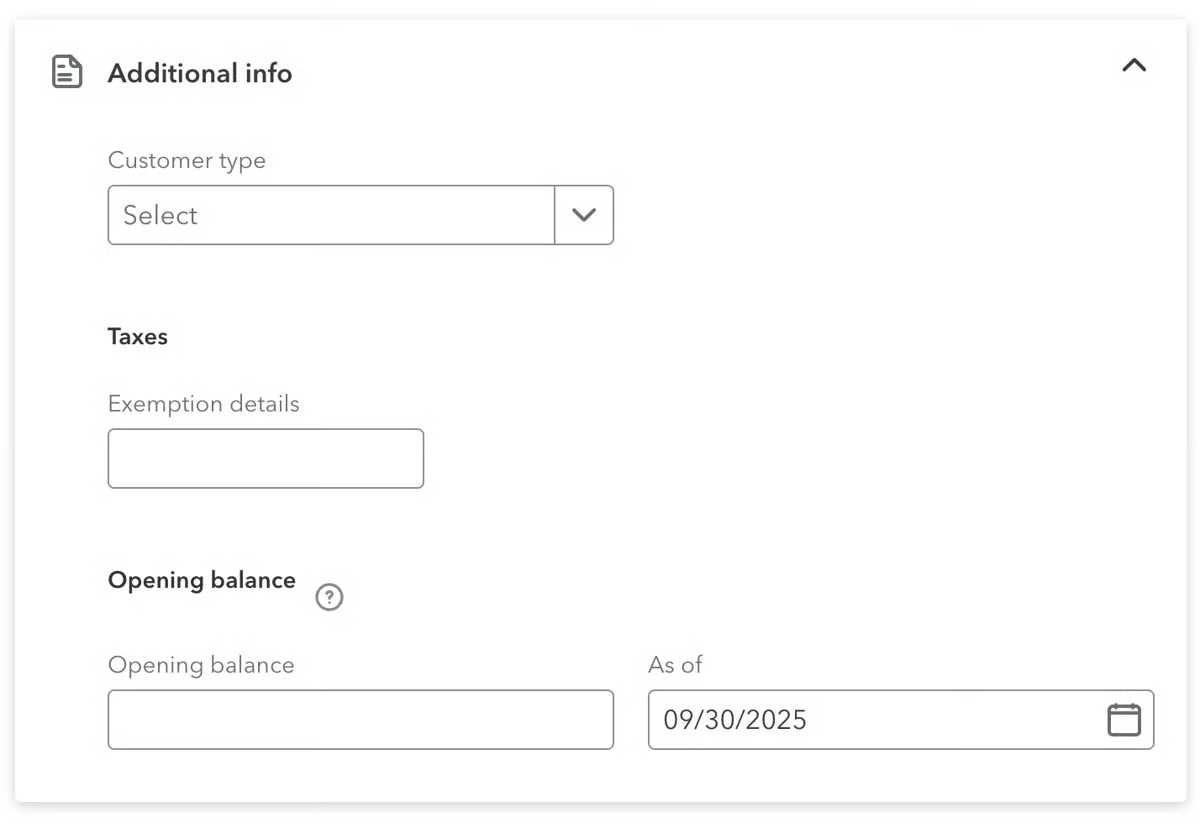
- Customer type lets you group tenants into categories, such as residential or commercial. This makes it easier to filter reports by tenant type and compare performance across property segments.
- Exemption details are useful if a tenant qualifies for tax exemptions, like a nonprofit leasing space (e.g., “Community Outreach Center – Tax Exempt”). Adding the information ensures sales tax isn’t applied incorrectly on invoices.
- Opening balance brings forward existing amounts owed, such as when a tenant already has $1,200 in unpaid rent as of 09/30/2025. Adding this ensures receivables start accurately and reports match reality when transitioning to QuickBooks.
Step 6: Set up recurring invoices.
The recurring invoices feature in QuickBooks Online is especially useful for rental property management. Instead of manually creating invoices each month, you can set up a recurring template for tenants with fixed monthly rent. This saves time, reduces the chance of missed invoices, and ensures tenants receive bills on schedule without extra effort.
To create recurring invoices, click the cogwheel icon (⚙︎) and under Lists, select Recurring transactions. This will bring you to the recurring transactions window. Click the New button to create a recurring transaction. A small window, as shown below, will appear:
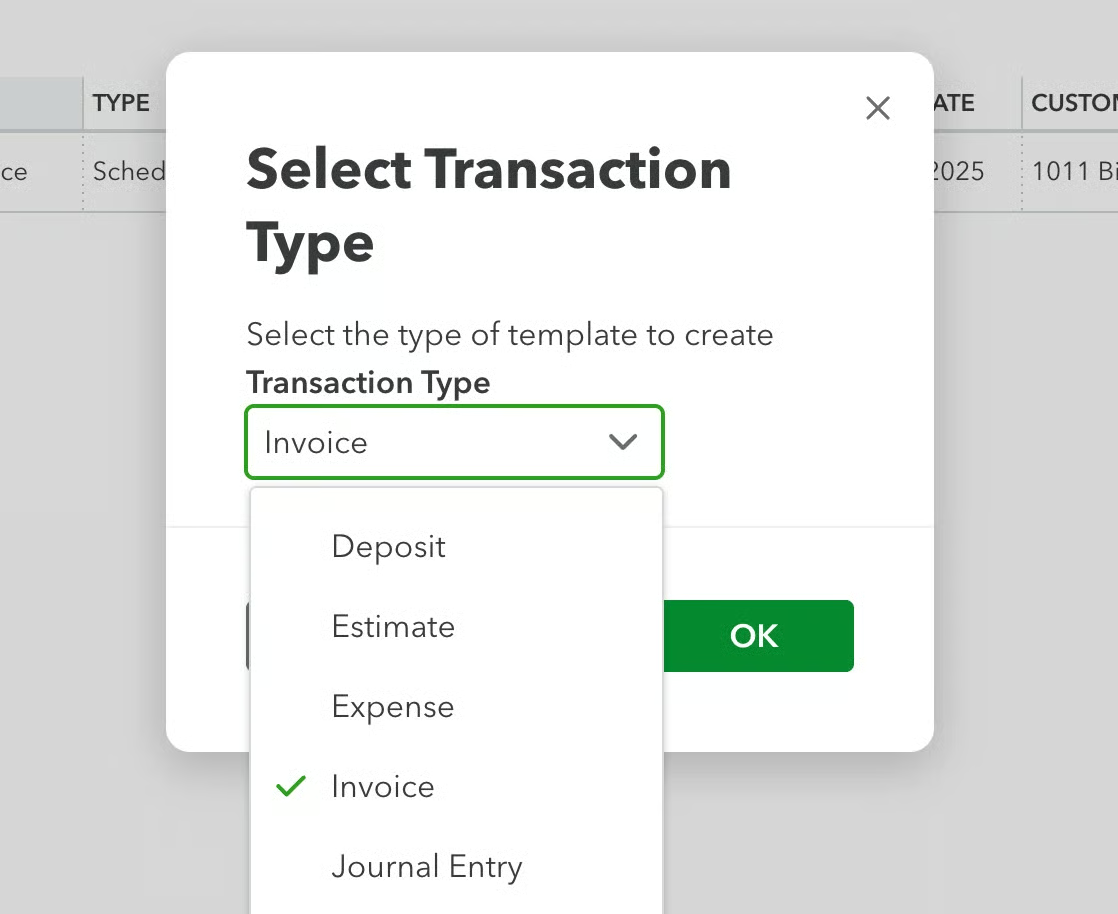
Creating a recurring invoice in QuickBooks Online is similar to creating a regular invoice; however, these recurring versions are referred to as templates. You’ll fill out the same invoice fields (customer, product/service, amount, class, etc.), and you’ll also set up scheduling details so that the system generates invoices automatically.
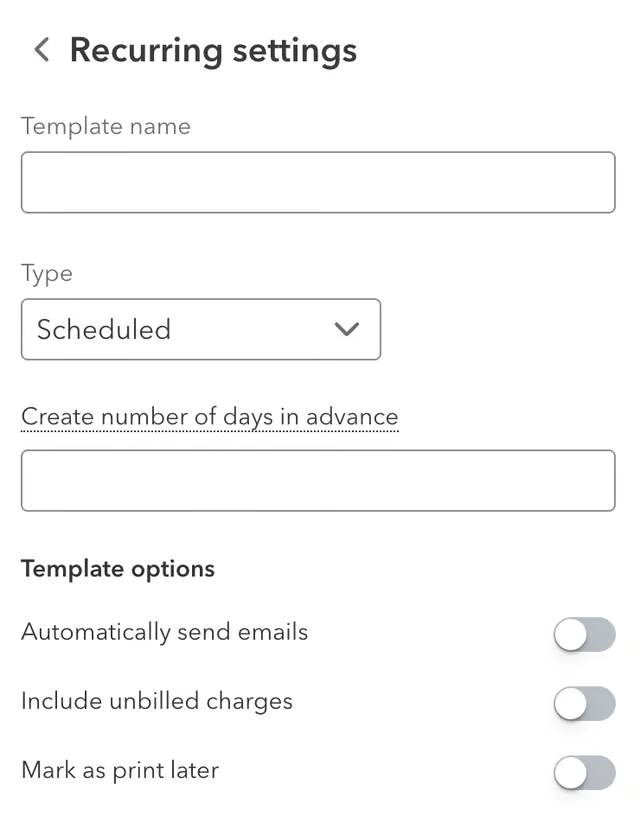
Recurring invoice basic settings (Source: QuickBooks) 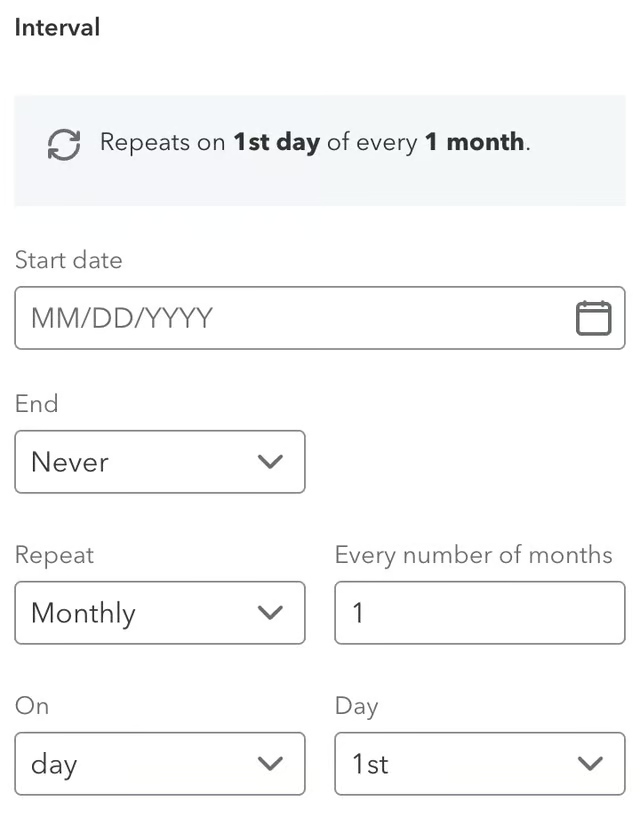
Setting recurring invoice interval (Source: QuickBooks)


Step 7: Record depreciation.
To record depreciation in QuickBooks Online, use a journal entry like the one shown in the image below. QuickBooks Online does not have built-in fixed asset tracking, so all depreciation must be recorded manually.
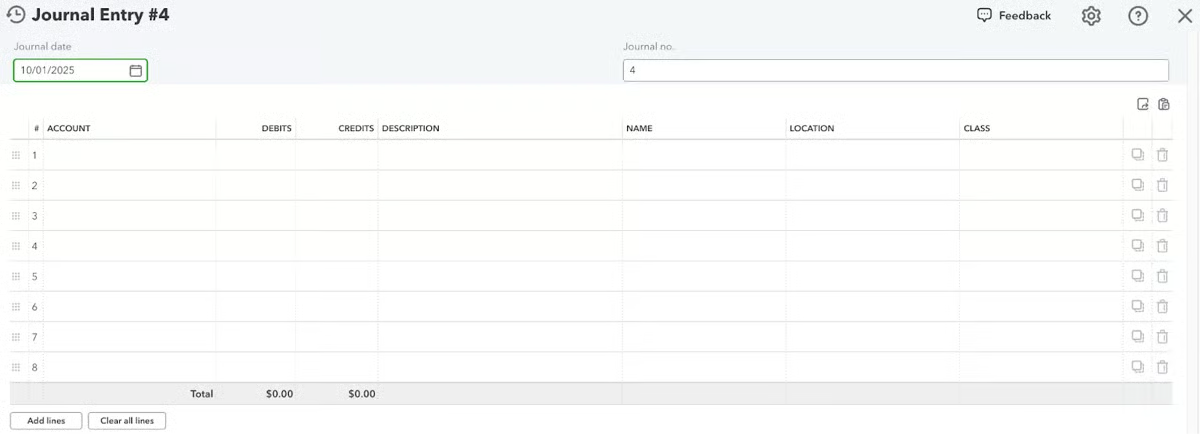
Here’s how to set it up:
- In the Debits column, add a depreciation expense line for each property or unit. Assign the appropriate Class so that the expense ties to the correct property’s profit and loss. For example, Depreciation Expense with class Maple Street.
- In the Credits column, enter a single line to Accumulated Depreciation. This account is a contra-asset on the Balance Sheet and doesn’t need Class tracking.
- Ensure that the total debits equal the total credits, so that the entry is balanced.
Since QuickBooks Online isn’t really built for in-depth property management, check out our list of the best property management software for small businesses.
Step 8: Know your essential reports.
QuickBooks Online includes many built-in reports and also allows for custom reporting to fit specific needs. To use QuickBooks for rentals, certain reports stand out as essential. Below, I share the key reports that help track property performance, prepare taxes, and manage financials effectively.
Profit and loss by class
The Profit and Loss by Class report can be customized to give landlords a clear view of property-by-property performance. The image below shows how income and expenses are displayed across different classes — each class representing a property, unit, or activity — along with a consolidated total.
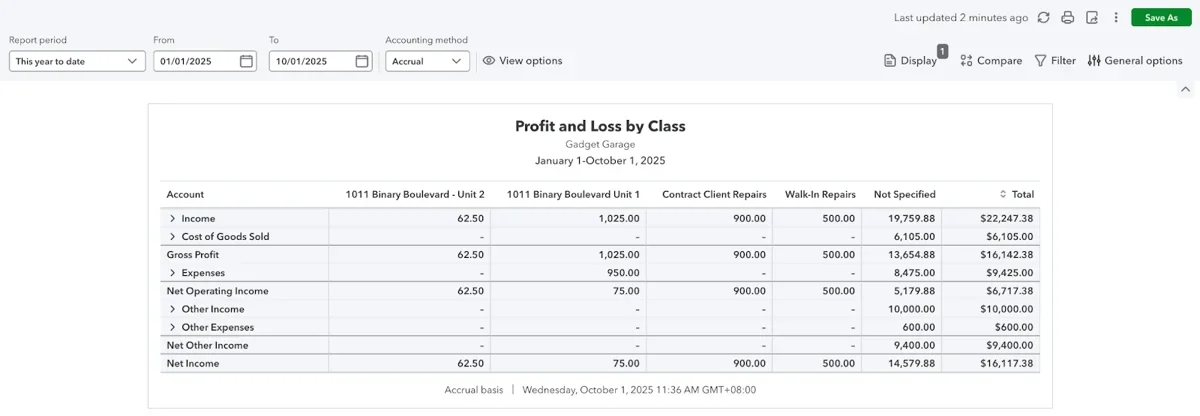
To edit this report, do the following:
- Adjust the report period.
- Choose between cash and accrual basis.
- Use the Filter option to select specific classes, accounts, or date ranges.
You can also expand or collapse account categories, like Income or Expenses, for more detail. Once customized, the report provides the foundation for Schedule E preparation and owner reporting, since it directly shows profitability broken down by each property class.
Cash flow statement
The cash flow statement is a vital report for rental property owners, as it shows how money is flowing in and out of the business. Unlike the profit and loss report, which focuses on income and expenses, it highlights actual cash activity.
This helps you see if rental income is truly covering mortgage payments, repairs, and other obligations, and whether you have enough liquidity for upcoming expenses or investments.
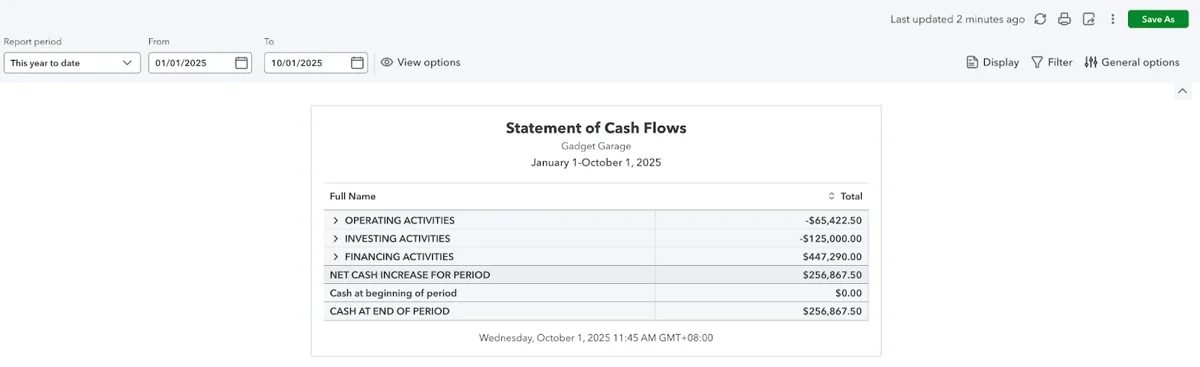
In QuickBooks Online, you can edit this report.
- Adjust the report period (using the date range at the top).
- Select cash or accrual basis.
- Apply filters to refine the view.
You can also expand or collapse sections like Operating, Investing, and Financing Activities to see more detail. The customized report gives a clear picture of how rental operations impact cash reserves.
Balance sheet by location
In rental property accounting, the Balance Sheet by Location is important because it allows you to view assets, liabilities, and equity separately for each rental business or entity. This is especially useful if you manage multiple LLCs or want to track property groups separately.
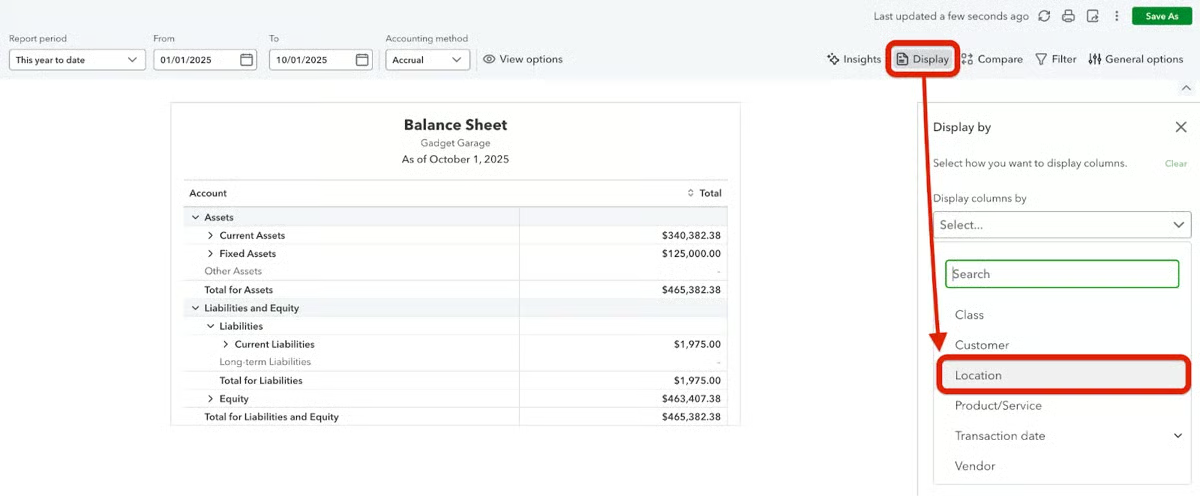
In QuickBooks Online, you can track locations by:
- Turn on location tracking in your Advanced settings.
- Go to the Balance Sheet report and select “Display”.
- Under “Display columns by,” choose “Location,” as shown in the image above.
You can then filter by specific locations to view the financial position of each property or entity individually. This setup ensures you’re not only tracking income and expenses by property (through Classes) but also understanding the balance sheet health for each rental business.
Transaction detail by class
The Transaction Detail by Account report in QuickBooks Online lists every transaction recorded in your accounts, showing how each one affects balances. To see your real property balances, do the following:
- Adjust the Group by option.
- Select “Class,” which lets you organize transactions by property or unit, aligning the details with your rental setup.
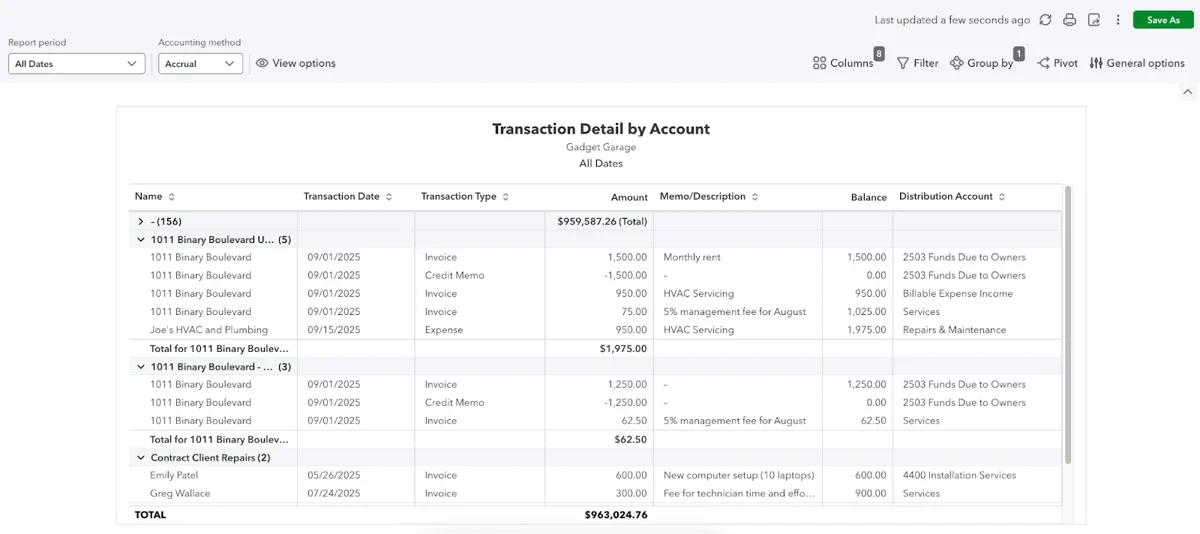
At the top, you can use the Columns option to add or remove fields like transaction type, memo, class, location, or customer, making the report as detailed or streamlined as you need. This flexibility is useful in rental property accounting because it allows you to trace individual income and expense items back to the right property.
Frequently asked questions (FAQs)
Can QuickBooks handle multiple rental properties effectively?
Yes. QuickBooks can manage multiple properties if set up properly with classes and locations. While there’s no strict property limit, complexity grows with portfolio size. For 80+ properties, it’s better to use specialized property management software integrated with QuickBooks. The best practice is to use locations for each property/building and classes for individual units or expense categories to keep the reporting accurate and clean.
How should I set up tenants and properties in QuickBooks?
Add properties as classes so that you can add them to every transaction line item. Tenants are added as customers.
How do I handle security deposits in QuickBooks?
Security deposits are liabilities, not income, until they are forfeited or applied to rent. As such, create an Other Current Asset account for deposits held and a Security Deposits Liability account. Use a service item linked to the liability account when collecting deposits, and only convert deposits to income if kept for damages or rent.